


Next-GenMotion Analyzer
Analyze your motion with the state of the art technology. A video player that features everything you need to improve your skills.















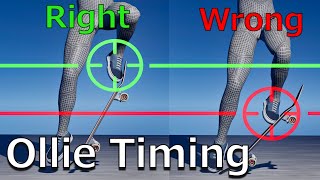

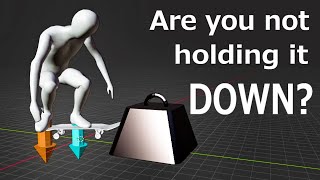












How-to Use & Function List
A feature that allows you to advance the video frame by frame by pressing a button. You can specify the number of frames to advance from 1 to 10, making it flexible for different frame rates and use cases.
- Select the number of frames you want to advance from the bottom of the screen.
- Select the number of frames you want to advance from the sidebar.
- Each time you press the blue button, the video advances by the specified number of frames.
- > advances by the specified number of frames, while >> advances by twice the specified number of frames.
- Keyboard shortcuts are supported. > uses the right arrow key, and >> uses Ctrl + right arrow. The same applies to the left side.
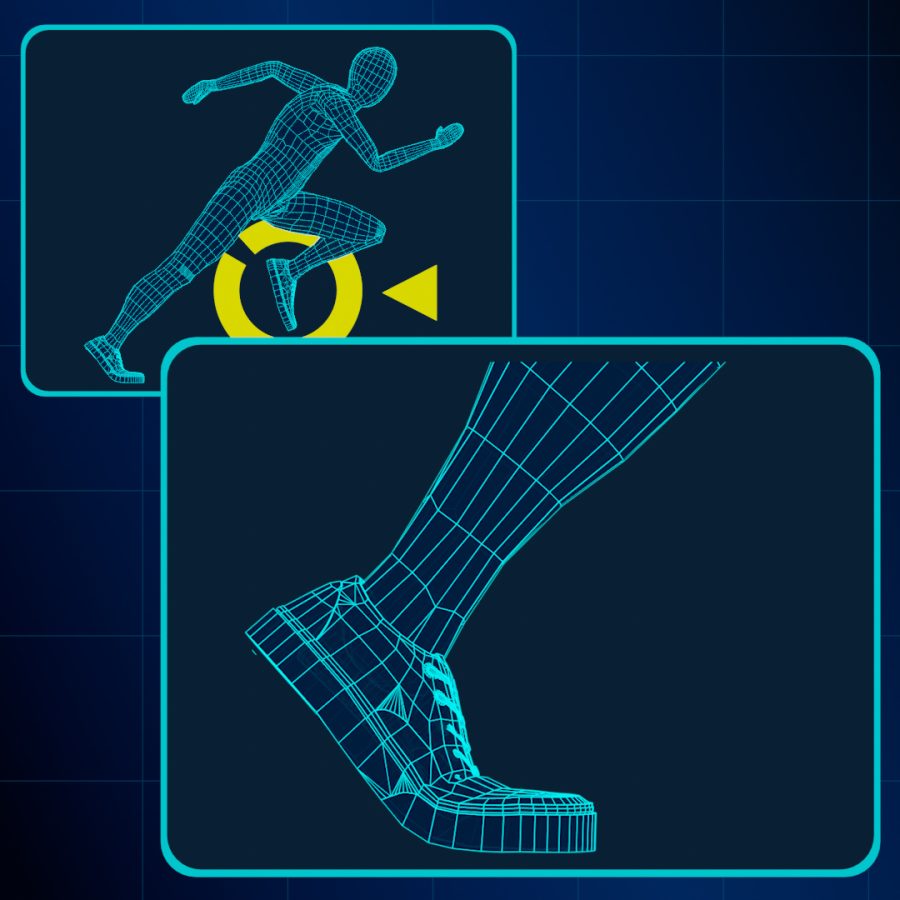
This feature allows you to zoom in on videos up to 10x at any magnification you like, while also freely adjusting the video position. Of course, it can also be used together with other features such as frame-by-frame playback.
- Adjust the zoom level using the mouse wheel. Click and drag the mouse wheel to reposition the video.
- Adjust the zoom level with a two-finger pinch gesture. Tap and drag the video with two fingers to reposition it.
- Press the settings button (≡ button) to open the detailed settings screen, where you can make pixel-level adjustments.
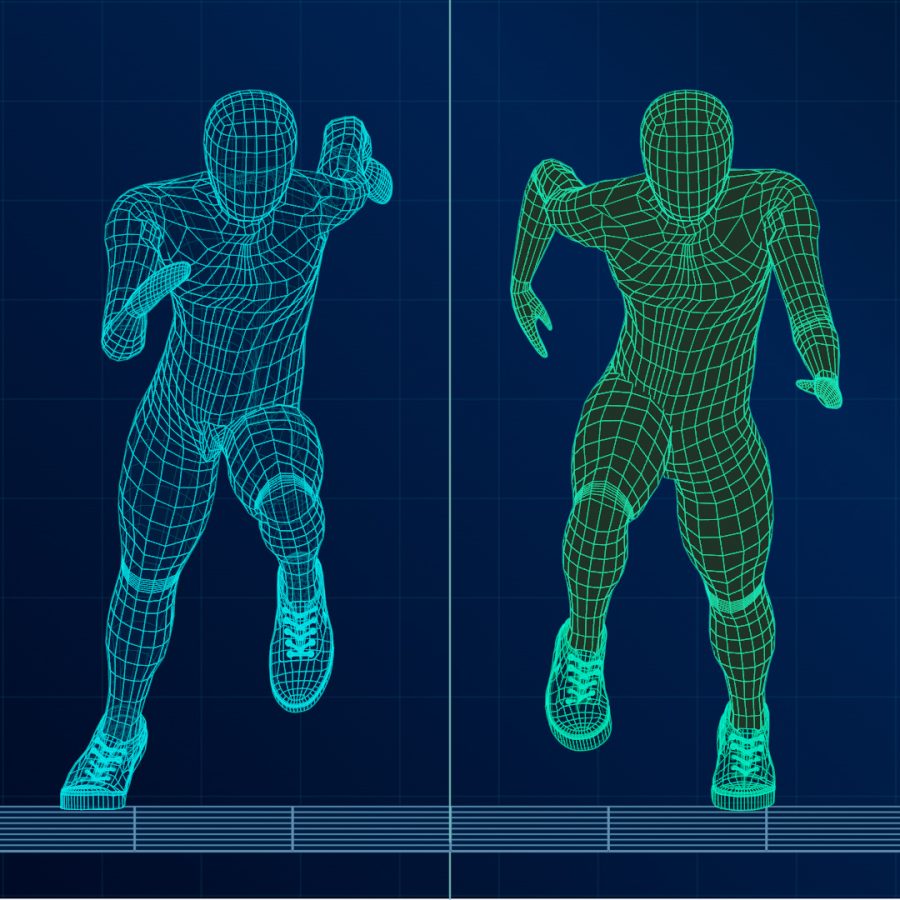
This feature splits the screen into left and right sections, allowing you to compare two different movements side by side on a single screen. When used together with the batch control feature, you can also advance both videos frame by frame simultaneously.
- This feature is currently disabled on smartphones because the screen becomes too cluttered. Please use a PC instead.
- Click the window icon in the sidebar to switch the displayed window in the following order: left window only, right window only, and both windows displayed.
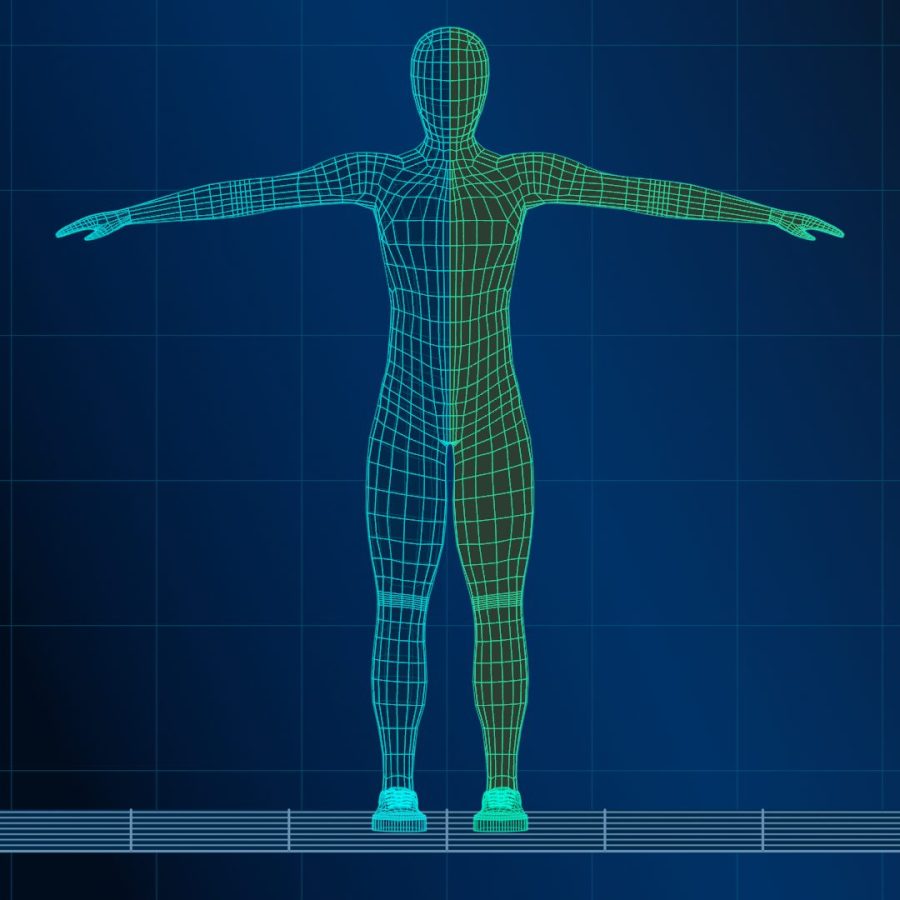
This feature allows you to perform actions such as playback and frame-by-frame stepping on both videos simultaneously. Available only in dual display mode.
- This feature is unavailable on smartphones because dual display is disabled. Please use a PC instead.
- Click the Bind Control tab at the bottom of the screen to display the control bar for synchronized operations.
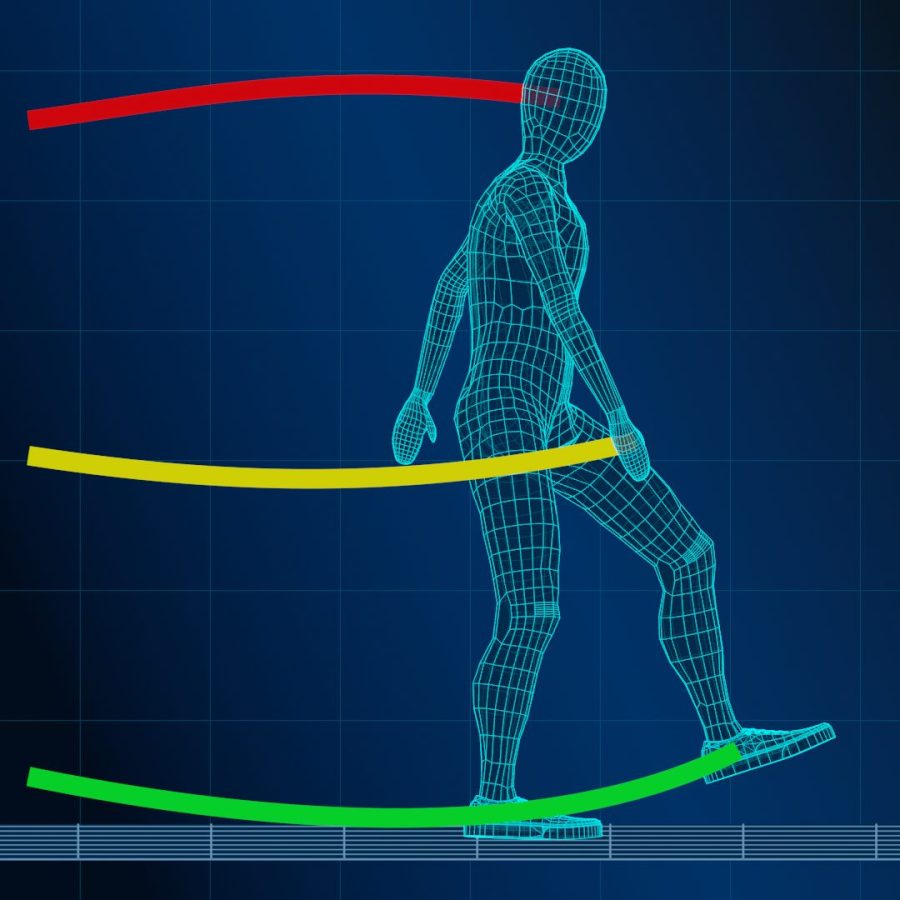
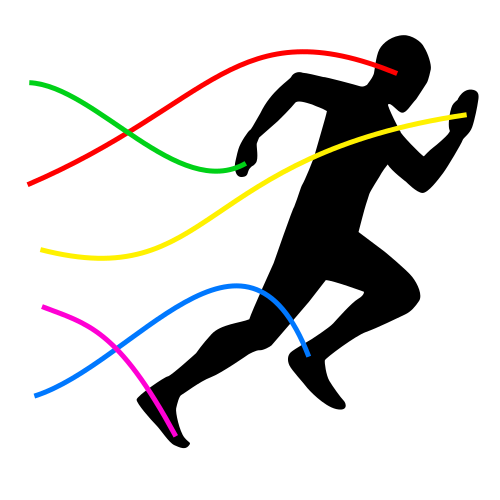
This feature automatically tracks body parts of a person in the video, allowing you to visualize movement trajectories and display grid lines.
- Open any video.
- Tap the + button at the bottom of the screen.
- Click Advanced Functions in the sidebar.
- Tracking will start automatically.
- You can choose from vertical, horizontal, or cross grid lines. Click the settings button (≡ button), select Advanced from the top of the settings screen, and click the grid icon for the area where you want to change the grid type.
- You can also hide the grid or reset the movement trajectory using the buttons at the top of the screen.
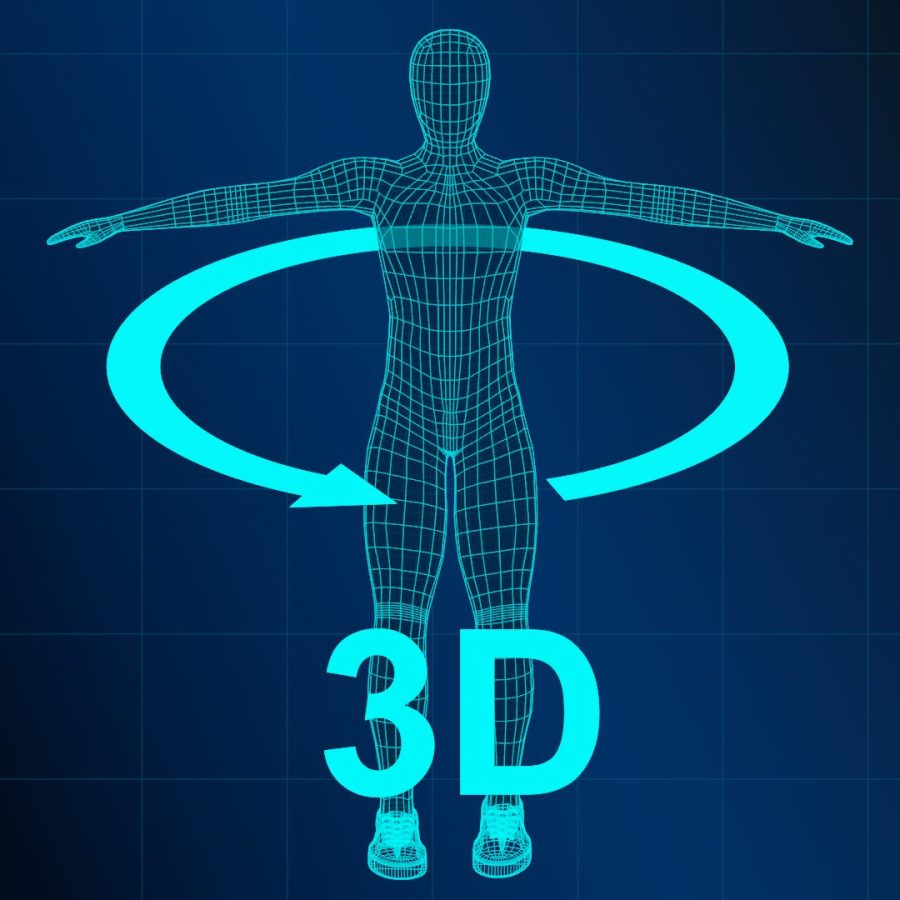
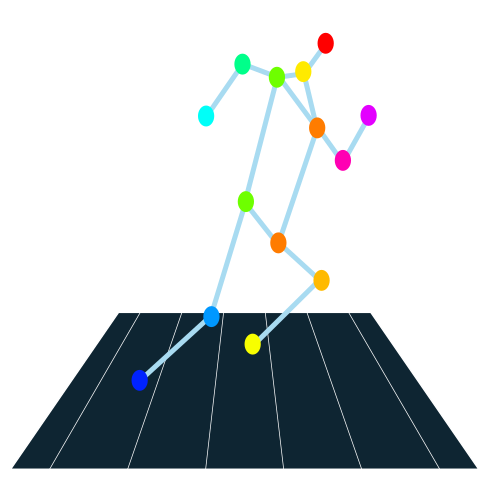
Recreates a person's movements from the video in a 3D space. You can freely control the camera angle and zoom level, making it possible to analyze movements from viewpoints that are impossible to see in a normal video.
- Open any video.
- Tap the + button at the bottom of the screen.
- Tap the same button again.
- Click Advanced Functions in the sidebar.
- Click the same button again and select 3D Augmented.
- In the 3D space, you can adjust the camera angle with mouse drag and control the zoom level using the mouse wheel.
- In the 3D space, you can adjust the camera angle by tap-and-drag and control the zoom level with pinch gestures.
A feature that allows you to repeatedly play back a specified section in a loop.
- Open any video.
- Click the settings button (≡ button).
- Turn on Loop Settings.
- Specify the desired playback range.

A feature that lets you choose videos to display from videos stored on your device, videos saved on your My Page, or videos on YouTube.
- Click the Upload Mode button at the bottom of the screen to switch between loading modes.
FAQ
What can this system do?
This system is a next-generation AI analysis tool that not only includes traditional video player functions such as frame-by-frame playback and dual video display side by side, but also features advanced capabilities like AI-based motion analysis. It can visualize motion trajectories of a person in a video and recreate their movements as animations in 3D space.
It is suitable for a wide range of applications, including sports form checks, performance comparisons, and motion analysis for dance and fitness.
Is frame-by-frame playback available?
Yes, intuitive frame-by-frame playback is available by using the forward and backward buttons. While many video players offer this function on PC, our system also works seamlessly on smartphones, freeing users from the hassle of adjusting tiny progress bars. Additionally, you can customize the number of frames to skip, from 1 to 10 frames.
Can this system create 3D animations from videos?
No, this system is designed to reconstruct the positions of body parts in 3D space based on the person’s movements in the video. It does not generate visually elaborate, so-called“3D animations.”However, you can freely change the viewpoint within the 3D space and examine the reconstructed body positions from angles that were not visible before, allowing you to analyze your movements from new perspectives.
What features are available?
- Frame-by-frame playback: Move the video forward or backward by a specified number of frames.
- Playback speed control: Adjust playback speed from 0.1x to 2.0x.
- Dual playback (PC only): Display two videos side by side.
- Loop playback: Loop a specific section of the video by setting start and end points.
- Video position adjustment: Move the video display up, down, left, or right.
- Zoom control: Adjust the display scale of the video.
- Body part trajectory display: Draw the motion path of estimated body parts using AI.
- Grid line overlay: Show grid lines aligned with the position of body parts.
- Color customization: Change the color of trajectories and grid lines.
- 3D animation conversion: Reconstruct body movements in 3D space based on AI analysis.
- Pose estimation accuracy control: Adjust the accuracy level of AI-based pose estimation.
Do I need to download any software?
No. This system is a web-based application, and all features run directly in your browser. There is no need to install any software—simply access the system from your smartphone or PC to start using it.
What file formats are supported?
The system supports video file formats that are playable in your web browser. The upload section will automatically display the formats supported by your browser.
Is it available on mobile devices?
Yes, the system is compatible with smartphones and tablets. You can analyze recorded videos on the spot.
How accurate is the pose estimation?
The system utilizes a state-of-the-art pose estimation engine powered by AI to detect joint movements in real time. When the video is well-lit and the subject is clearly visible, it delivers highly accurate analysis. However, accuracy may decrease if the subject appears blurry or if the video is taken from low angles—such as placing the camera on the ground and shooting upward. In such cases, adjusting parameters through the AI's pose estimation accuracy tuning feature may help improve performance.
Is this system free to use?
Many features including video uploads, 3D analysis, and frame-by-frame playback are available free of charge. Some advanced functions are available with Standard plan or above.
Yourcommentboxdoesnotrecognizethespacebaronacomputerkeyboard!!!Pleasecorrectthis.Ihaveanimportantupdatetomakethissoftwaredomuchmore.
Oh, sorry about that! Just released a patch to fix the problem.
Can you make trick on 12 foot vert ramp. Im thinking about dynamics of front and backside kickturns, wheel durometers and friction increase or reduction. Also what part does sliding in turn rotation play in stability. Example variables 97 duro vs 101 duro. And probably wheel size and width.